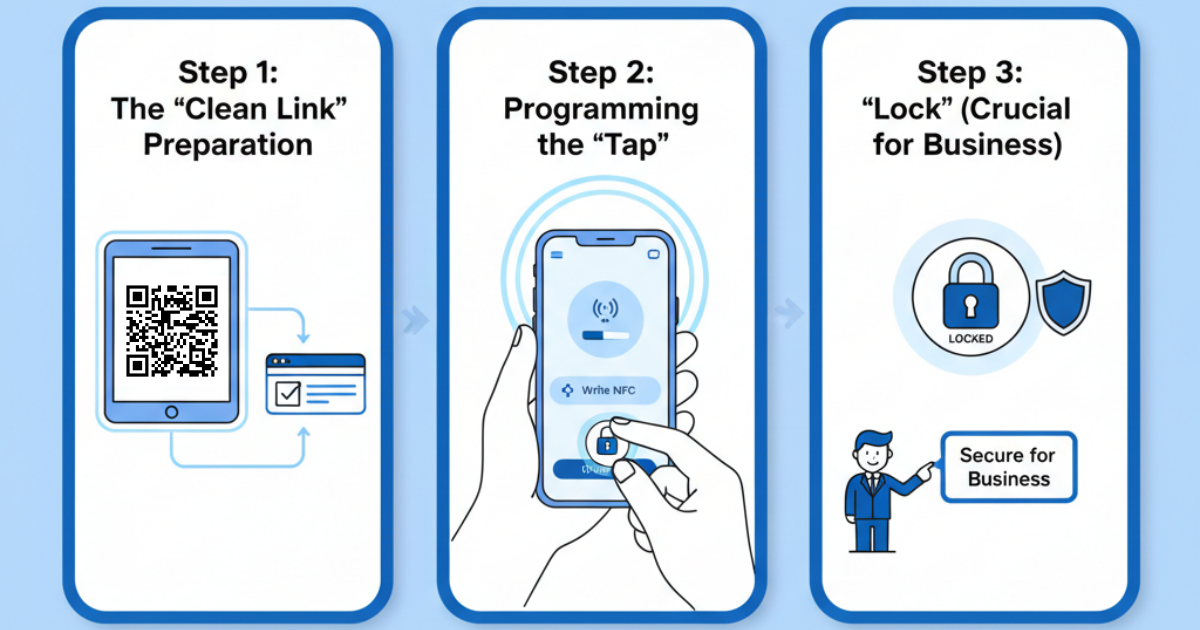
Step 1: The "Clean Link" Preparation
Before writing to a tag, ensure your URL is optimized (when you use a Privacy-by-Design approach, you don't need tracking strings).
-
Action: Copy the exact URL that your Belo Marketing QR code points to.
-
Pro-Tip: If your URL is very long, use a clean redirect on your own domain. This ensures the data fits easily on even the smallest NFC chips.
Step 2: Programming the "Tap"
NFC tags are essentially tiny, unpowered storage devices. You are going to "burn" your link onto the chip.
-
Open the NFC Tools app.
-
Select Write > Add a record.
-
Select URL / URI.
-
Paste your link and hit OK.
-
Tap Write and hold the back of your phone against the blank NFC tag for 1 or 2 seconds.
-
Success! The chip now holds your destination link permanently.
Step 3: The "Lock" (Crucial for Business)
NFC tags can be rewritten by anyone unless you "Lock" them.
-
Action: In your app settings, select Lock Tag.
-
Warning: This is permanent. Once locked, the link cannot be changed. This is the hardware version of your Immutable QR Code. It ensures that no one can "hijack" your physical tag to point to a different site.
Business Use-Case: The "Double-Threat" Signage
The most profitable way to use this is to place an NFC sticker directly behind your printed QR code.
-
The Result: A customer sees your sign. If they are tech-savvy, they simply tap their phone against the QR code image and your site pops up instantly (NFC). If they are further away or prefer the camera, they scan the code (QR).
-
The ROI: You have just removed 100% of the friction. You have catered to both the "Scanner" and the "Tapper".